Accounting exports view
-
In LBS Suite Dashboard, click on “Widget” tab and “+ New”.
The list of widgets available is displayed.
-
Select widget “8-Accounting exports”.
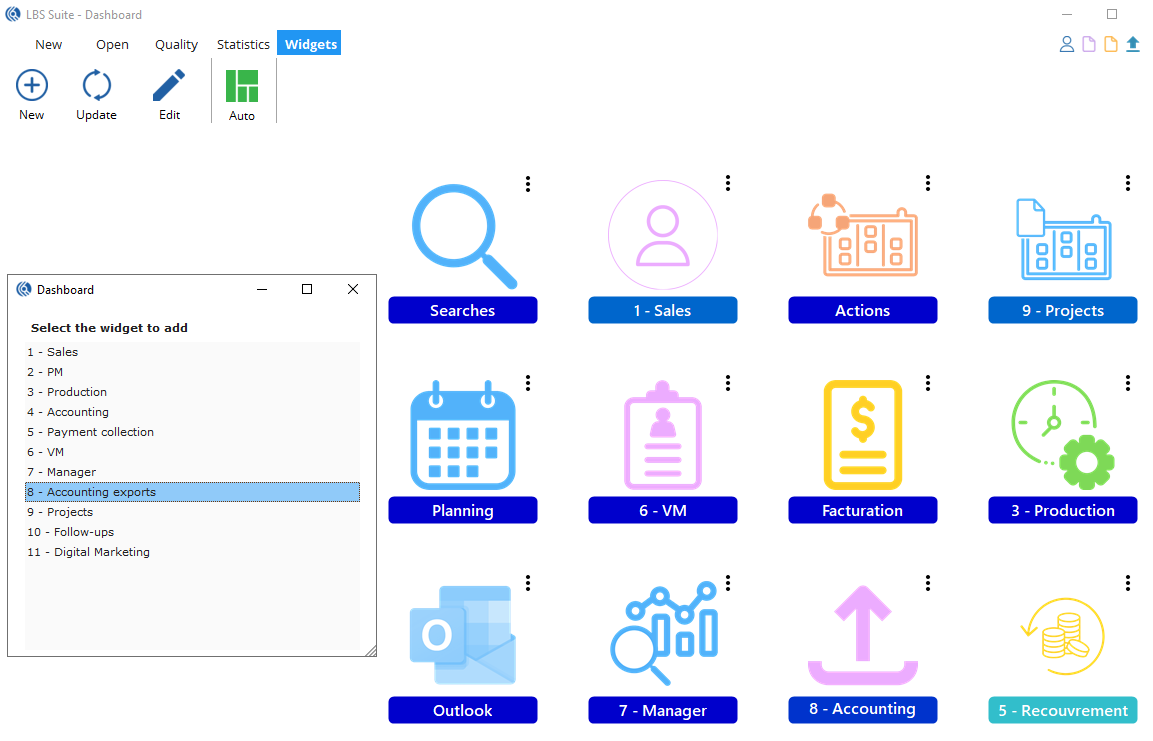
- Click on the widget to open the “Accounting exports configuration” window.
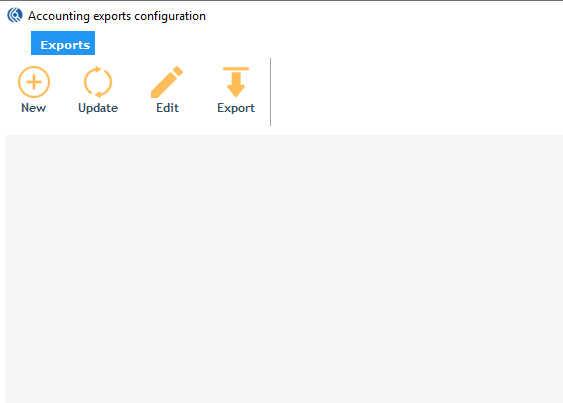
Ribbon menu
 Click on the “+ New” button to create a new export
 Click on the “Update” button to update existing exports
 Click on the “Edit” button to edit existing exports
 Click on the “Export” button to export all accounting data at once
Configure an export
- Click on the yellow “+ New” button to configure an accounting export.

The export configuration window opens:
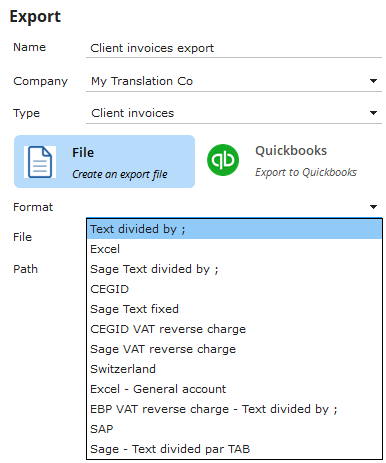
- In “name”, type in a name for the export.
- In “company”, select the company from the drop-down list.
- In “type”, choose the type of export from the drop-down list.
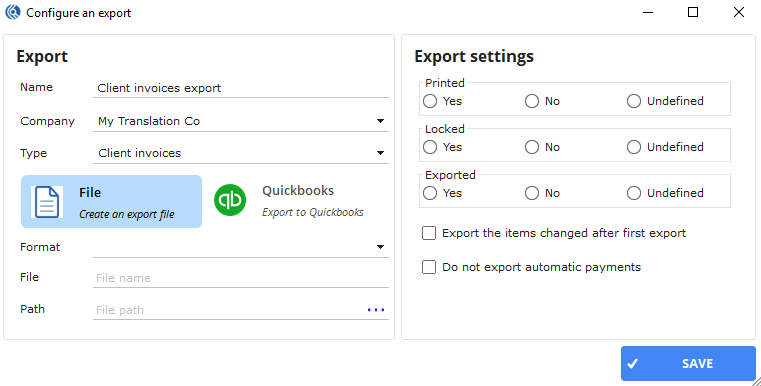
- Choose between “File” or “Quickbooks”
- If choosing “File” select an export file format from the drop-down list:
-
In “File”, enter a name for the export file.
-
In “Path”, specify the path where to save the file.
NB: If choosing QuickBooks OnlineApp, Format, File and Path are greyed out.
In the “Export settings” part, select “Yes”, “No” or “Undefined” for the following options:
- Printed: the data has been printed in PDF format.
- Locked: the invoice is locked in LBS.
- Exported: the invoice has already been exported.
- Tick “Export the items changed after first export” if needed.
- Tick “Do not export automatic payments” if needed.
-
Click “Save” to create the widget.
The widget is added to the accounting view.
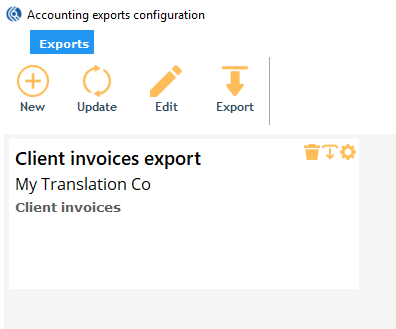
Repeat the same procedure for each kind of export.
Export accounting data
Data can be exported one by one or all at once.
- To export one at a time: click on the yellow down arrow “export” icon of each widget.
- To export all at the same time: click on the yellow down arrow “Export” button of the ribbon menu.
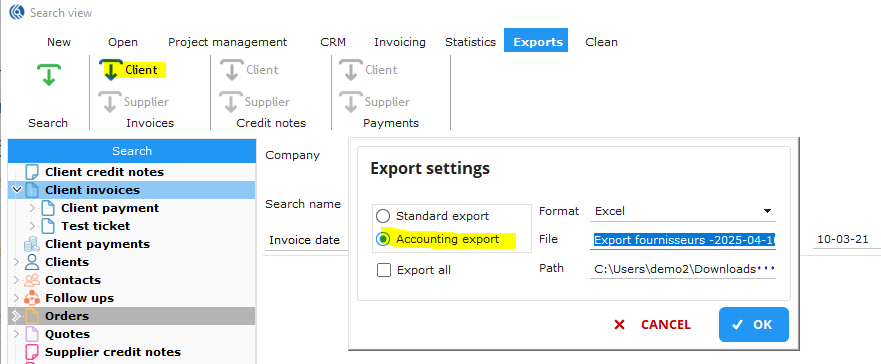
Exports can also be done from the Searches view for specific or punctual exports.
- Launch a search with the criteria needed.
- Click on the “Exports” tab.
- Click on the corresponding export button -> The “Export settings” window opens.
- Select the type of export: “Standard” or “Accounting”.
- In “Format”, select the export format.
- In “File”, give a file name.
- In “Path” select a path where the export will be exported to.
- Click on “OK” to launch the export.