How to create a client credit note
In this document, you will learn how to create a credit note on a client invoice in LBS Suite.
Create a client credit note
- Launch a search on “client invoices” in the left search table.
- Select the invoice for which a credit note will be issued.
- Right-click and select “Create a credit note”.
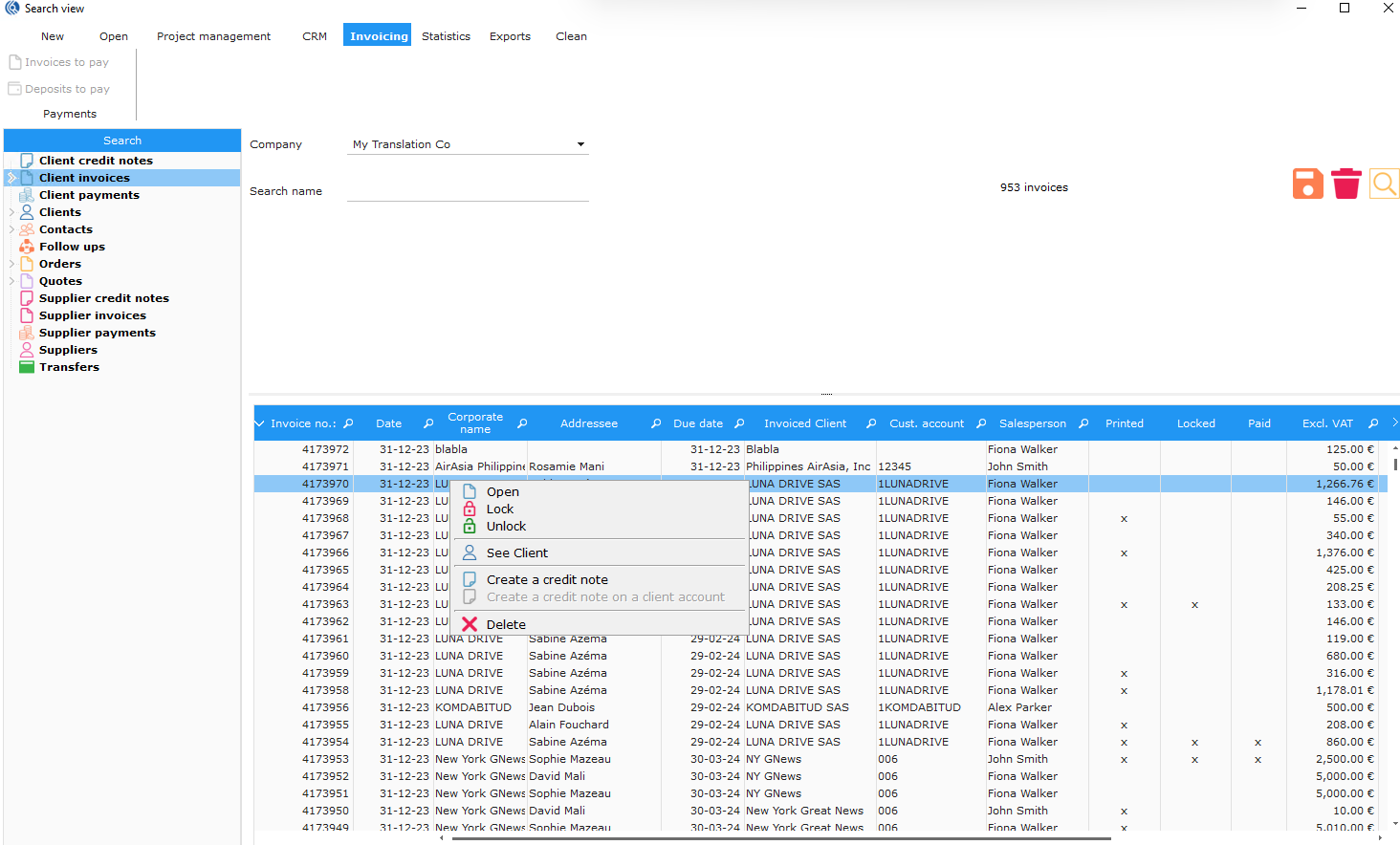
The following window opens with the services available:
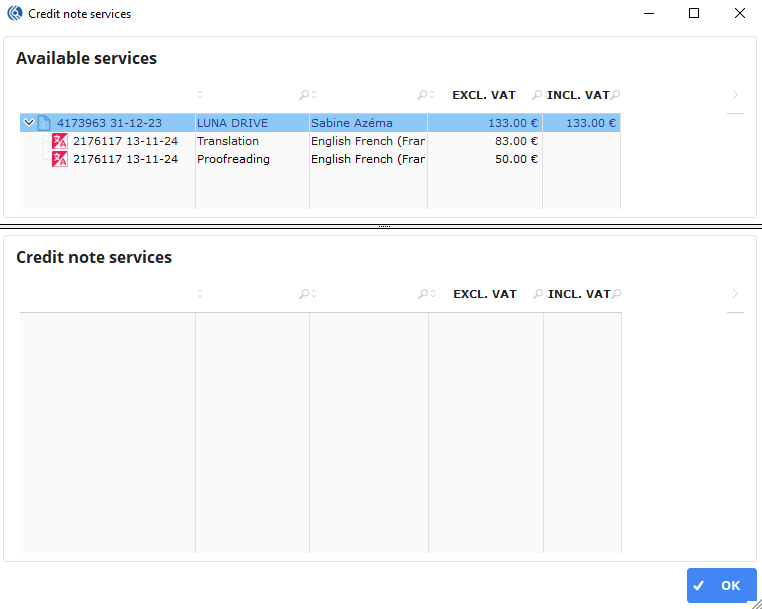
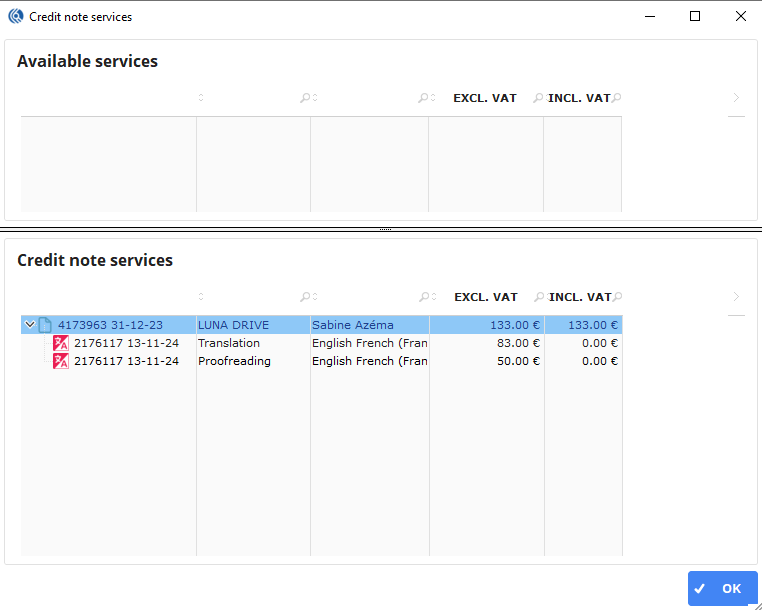
Double-click on:
- the line of the invoice to select all the services of the invoice
- or only on the line of the service(s) concerned by the credit note
- click on “OK” to validate
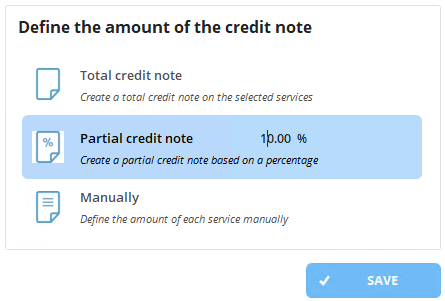
The window “Define the amount of the credit note” appears in which you select the type of credit note that you want to issue:
- Total
- Partial
- Manual
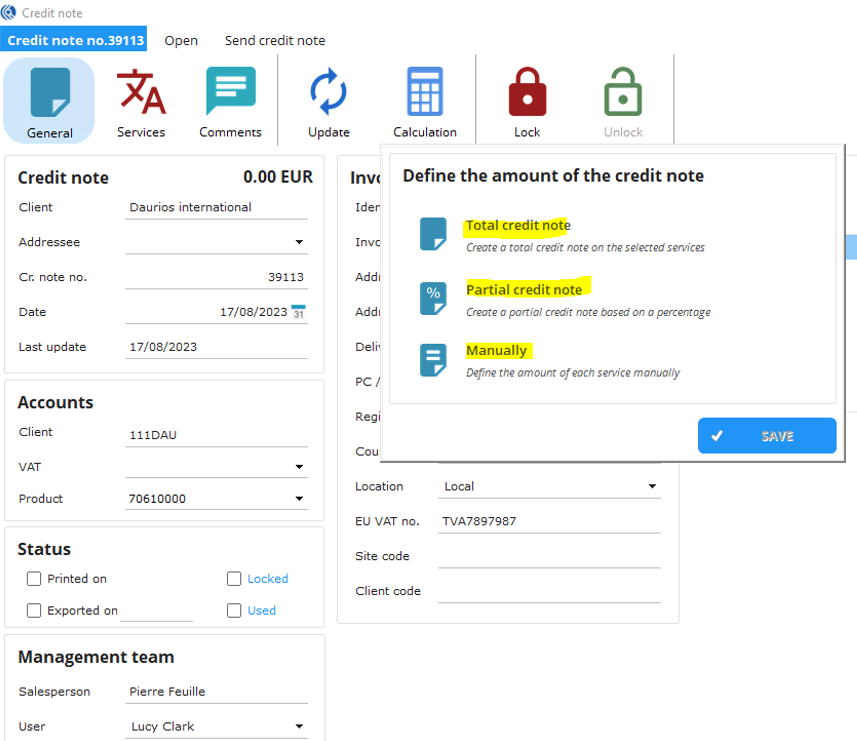
Total credit note
Click on “Total credit note” so the credit note is automatically created with the total amount.
-
Choose the addressee and send it to your client.
-
Choose if the order or the services should be re-invoiced or not: Select “all” or “none”.

-
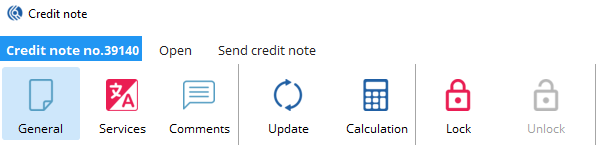
Click on the “Lock” button in the ribbon menu to lock the credit note.
-
Click on “Send credit note” tab.
-
Click on “PDF” to only generate the pdf file of the credit not or “PDF by email” to generate the PDF and send it per email.

-
Select the template and click “OK”.

NB: The PDF is generated and attached to the email (if applicable).
Partial credit note
Gives the possibility to create a partial credit note based on a percentage.
- Click on “Partial credit note”
- Type in the percentage
- Click “Save”
NB: The amount is calculated automatically.
-
Choose the addressee and send it to your client.
-
Choose if the services of the should be re-invoiced or not: Select “all” or “none”. If multiple order, select “yes” or “no” depending on the orders.
-
Click on the “Lock” button in the ribbon menu to lock the credit note.
-
Click on “Send credit note” tab.
-
Click “PDF” to generate a PDF only or “PDF by email” to generate the PDF and send it per email.
-
Select the template and click “OK”.
Manual credit note
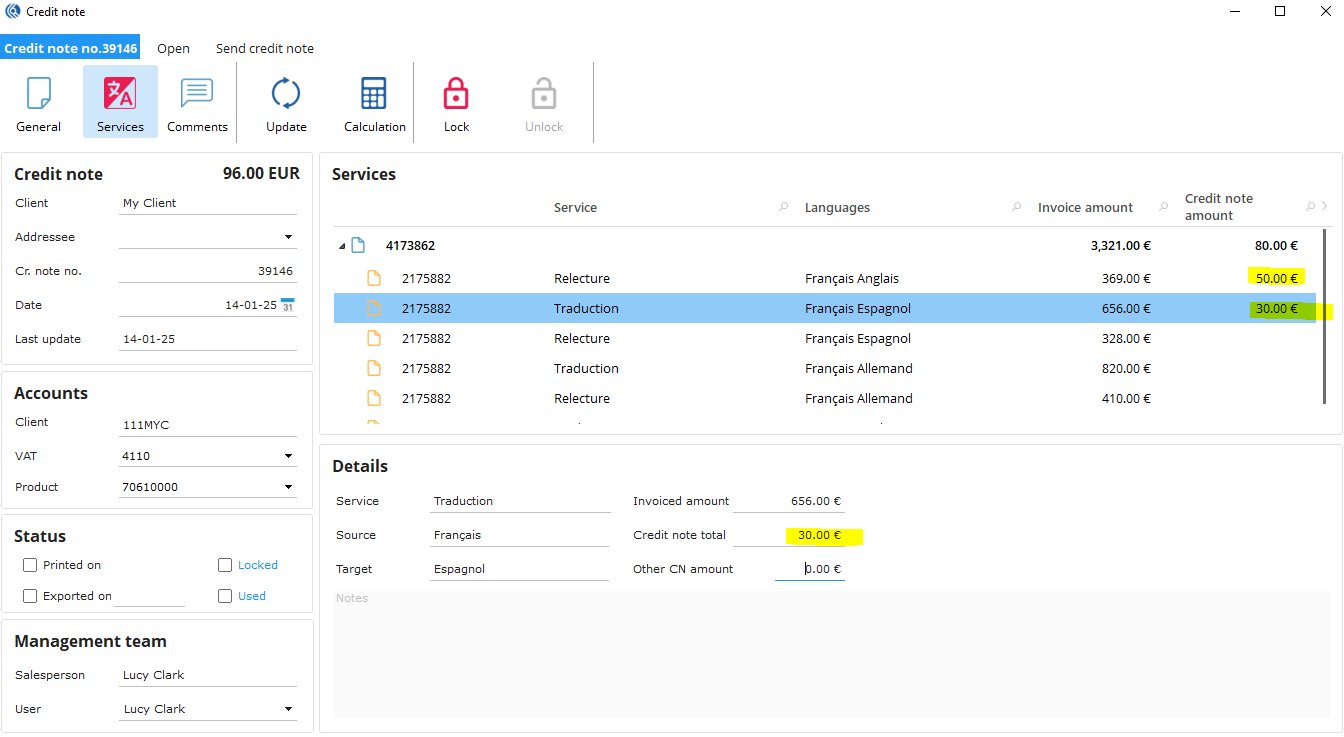
Gives the possibility to create a partial credit note based on a specific amount for each service.
- Click on “Manually”
- In the column “Credit note amount”, enter the amount for each service.
-
Select the addressee and send it to your client.
-
Choose if the order or the services should be re-invoiced or not: Select “all” or “none”.
-
Click on the “Lock” button in the ribbon menu to lock the credit note.
-
Click on “Send credit note” tab.
-
Click “PDF” to generate a PDF only or “PDF by email” to generate the PDF and send it per email.
-
Select the template and click “OK”.
Create a client credit note on multiple invoices
- Open “Search view”
- Select “Client invoices” on the “Search” table list
- Select desired search criteria and launch the search
- Select the invoices
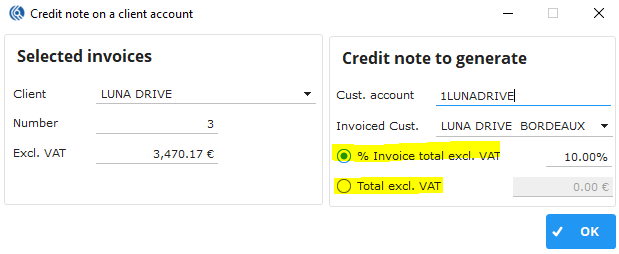
- Right-click in the result table and select “Create a credit note on a client account”

- Enter the percentage or amount to apply to the total amount of the invoice.
- Finalize editing the credit note and send it to the client as described above.