Quote creation
Creating a quote
You can create a new quote either from the dashboard using the “+Quote” button on the main ribbon and selecting “From a client” or “From a contact”.

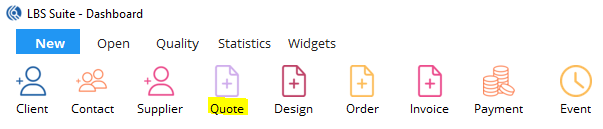
You can also create a quote from the Outlook or Gmail view by selecting the email and clicking on the “+Quote” button.

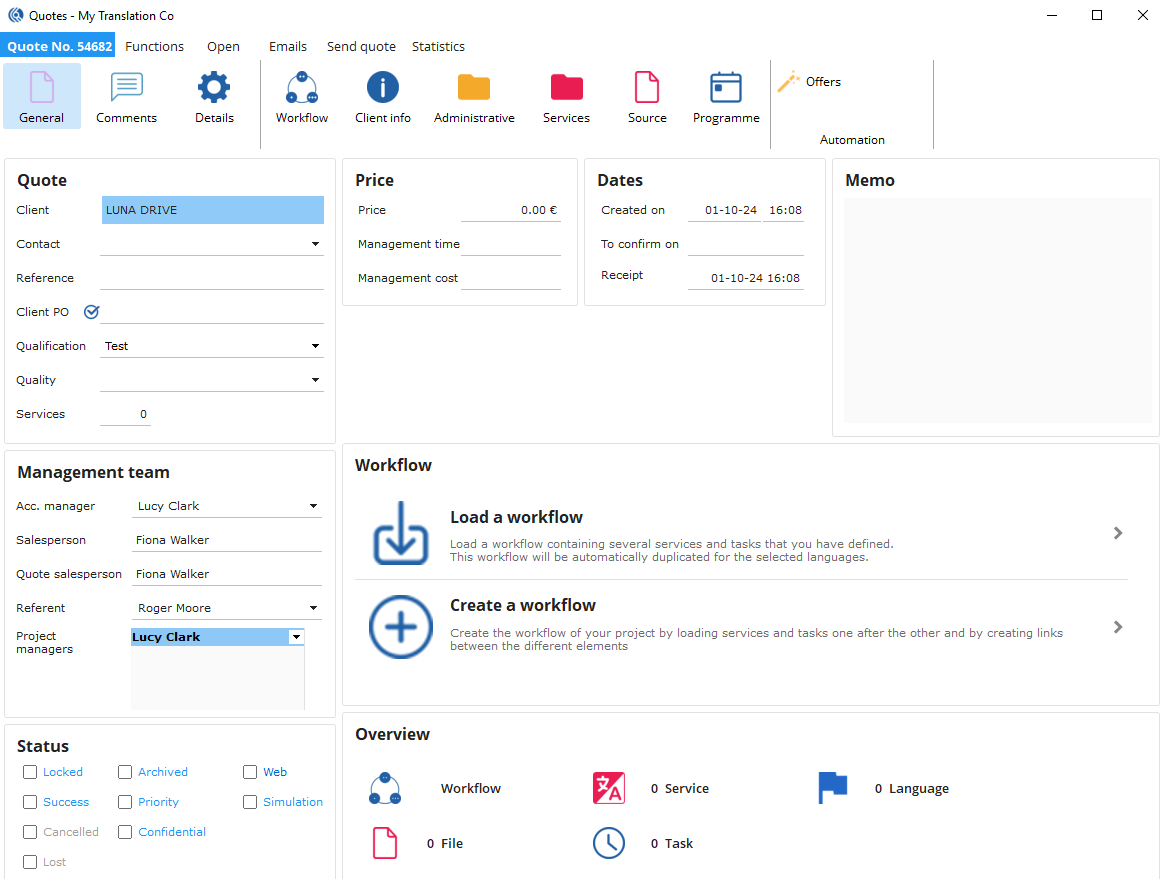
The management team section of the quote is prefilled with the information from the client record. You need to fill in the “Quote” section with the missing information (if necessary): contact, reference, client PO, qualification and quality on the left panel of the quote.
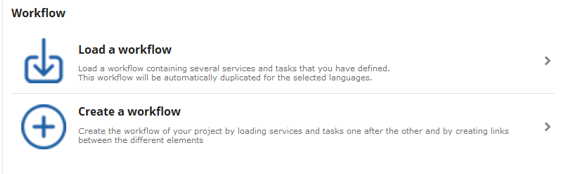
Workflow
Click on "Create a workflow" to start entering the services.
On the right side, the services are sorted by “Service type” (configured in Admin – Data – Services – Services). Drag and drop a service from there to your workflow. You can then enter the units/unit type.
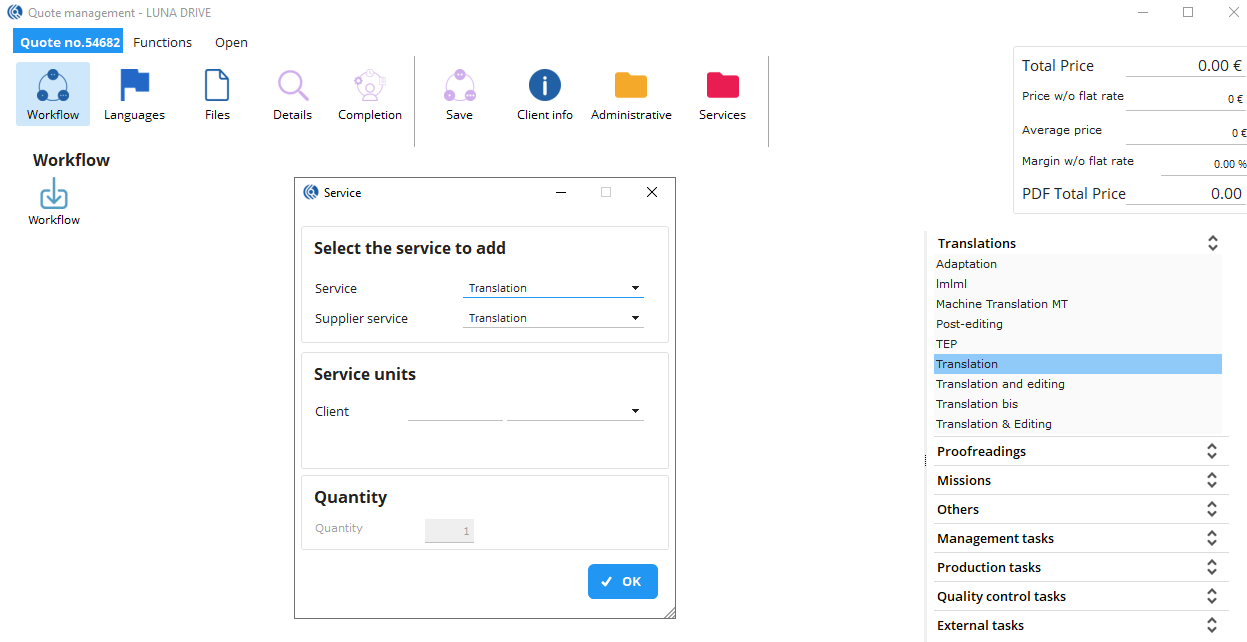
To add other services/tasks, you have two possibilities:
- Add an independent service: drag and drop a service (from the table on the right) under the previous service. Select the units and proceed.
- Link a service/task to an existing service: drag and drop a service/task (from the table on the right) onto the service to which it must be linked. In this case, a new window opens to set up the linked service/task:
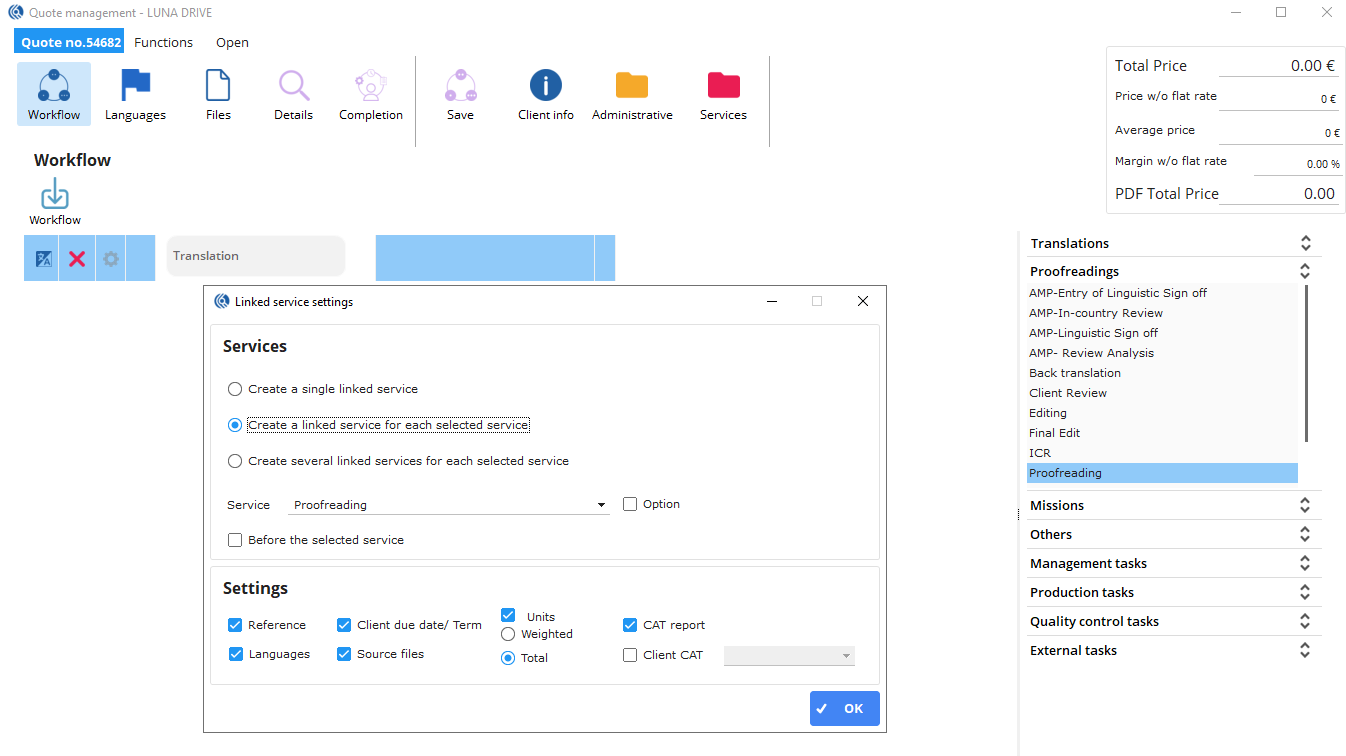
Configure the parameters of your linked service and the criteria from the original service you want to keep.
- Create a single linked service
- Create a linked service for each selected service
- Create several linked services for each selected service
Remark: the creation of a workflow must always start with a service. If a task must be made before the service, link it after creating the service, and check the box "Before the selected service", to link it in the right order.
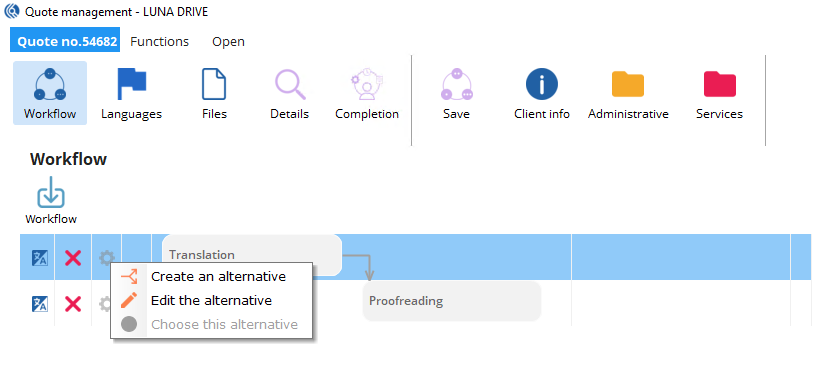
 To create an alternative service, click on the gear
  next to your service and select "Create an alternative". The service is copied. You can modify the service by clicking on the blue icon .
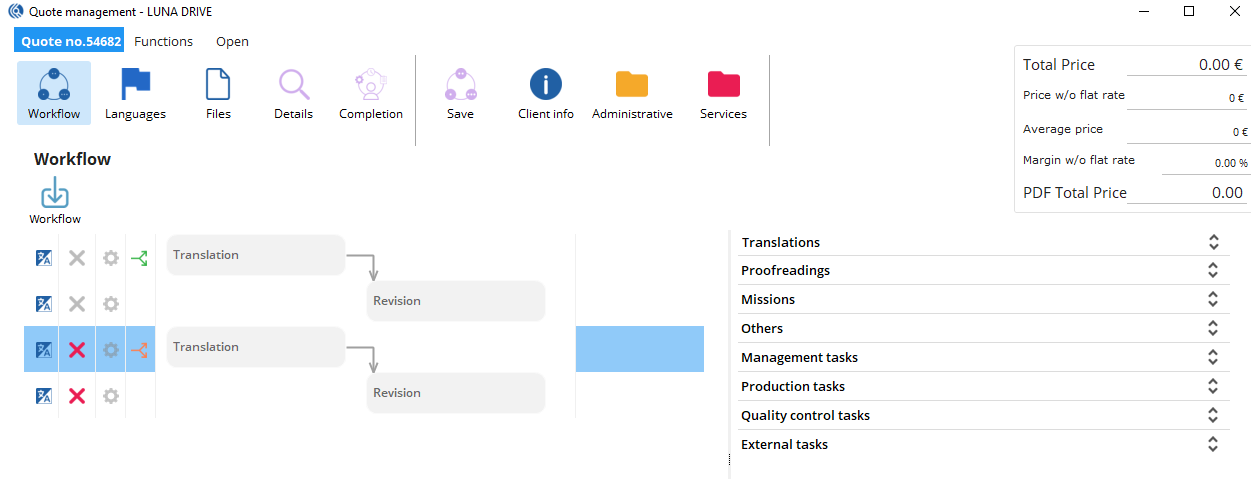
The selected alternative (which determines the price of the quote) is symbolised by a green arrow, the other by an orange arrow:
Languages
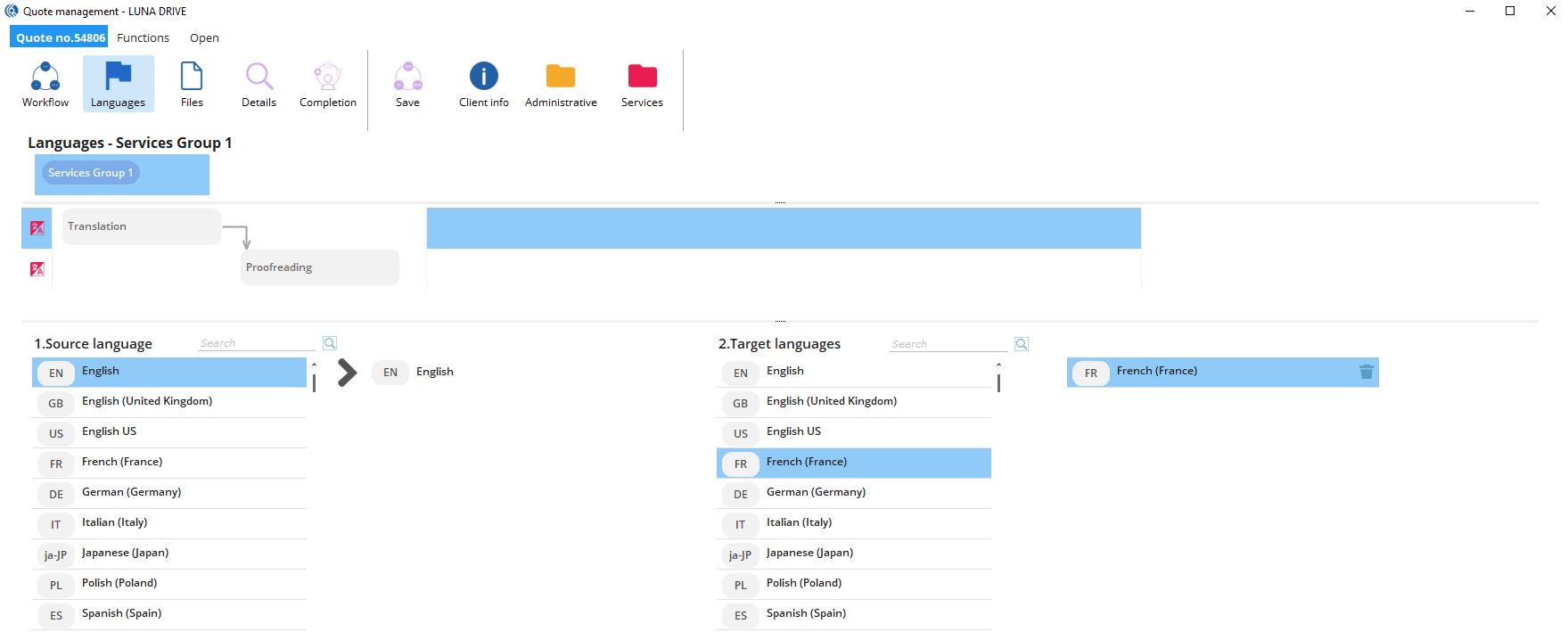
Here you can choose the source and target languages for your service group. A service group contains a service and all its related services/tasks.
Files
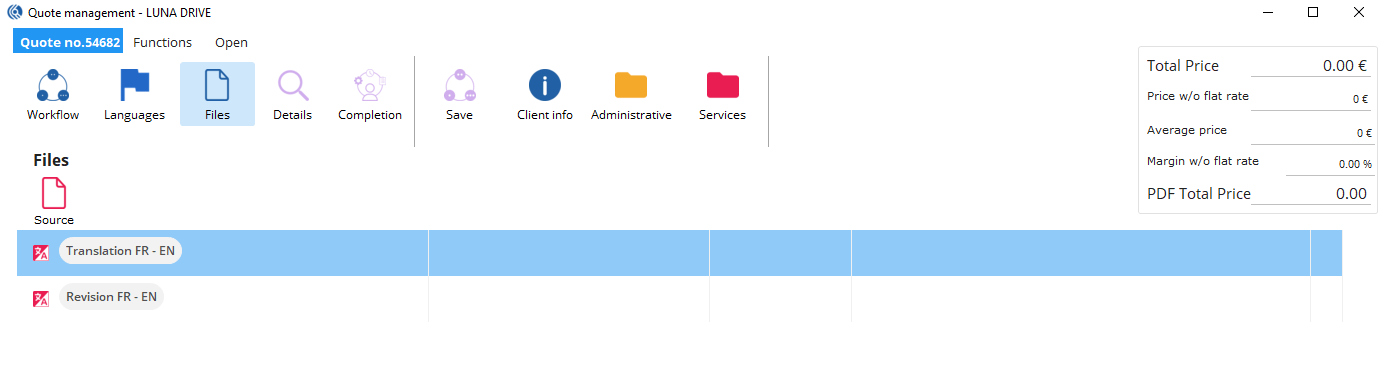
Here you can add the source files for all your services. To do that click on the “Files Source” icon.
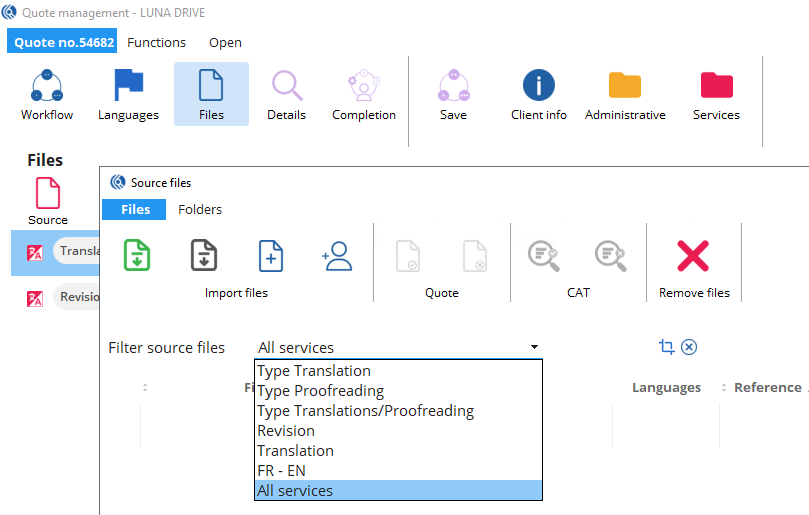
In this screen, you can filter the services to which you want to add files.
 Several options for adding files:
-
Import files from the email

-
Importing files from the web

-
Copy files by browsing folders

-
Importing files from the client record
Once you have chosen your file, you can change the file type if needed and indicate whether the file should be seen in the quote and be subject to CAT analysis.
By default, the document will be of type "Original files", will be seen in the quote and not subject to CAT analysis. 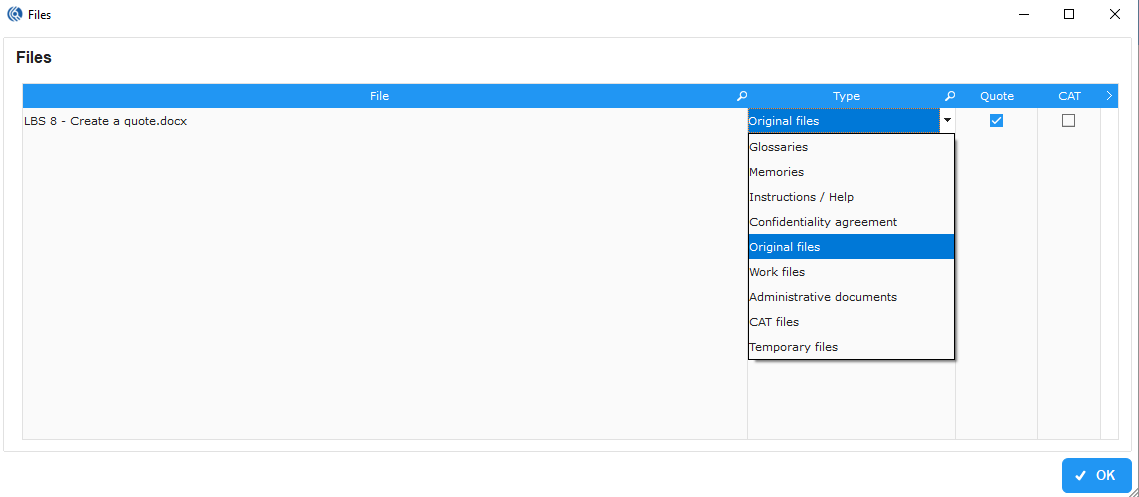
You then return to the source files screen, where you can also untick/tick quote/CAT if necessary.
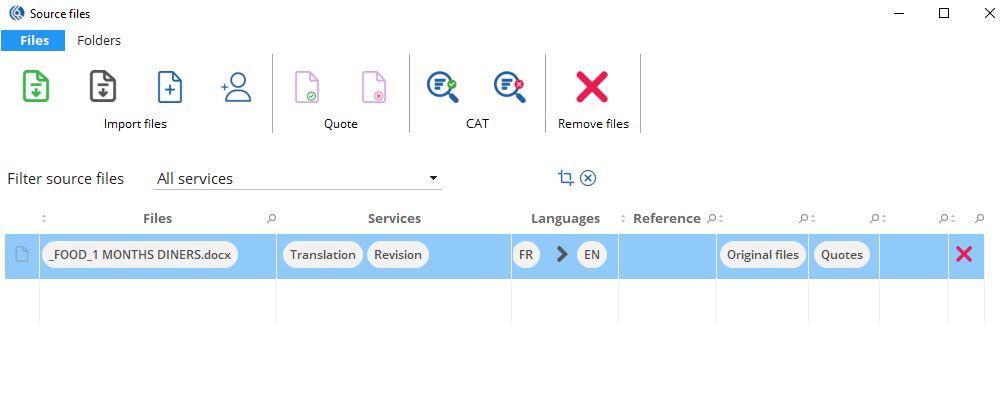
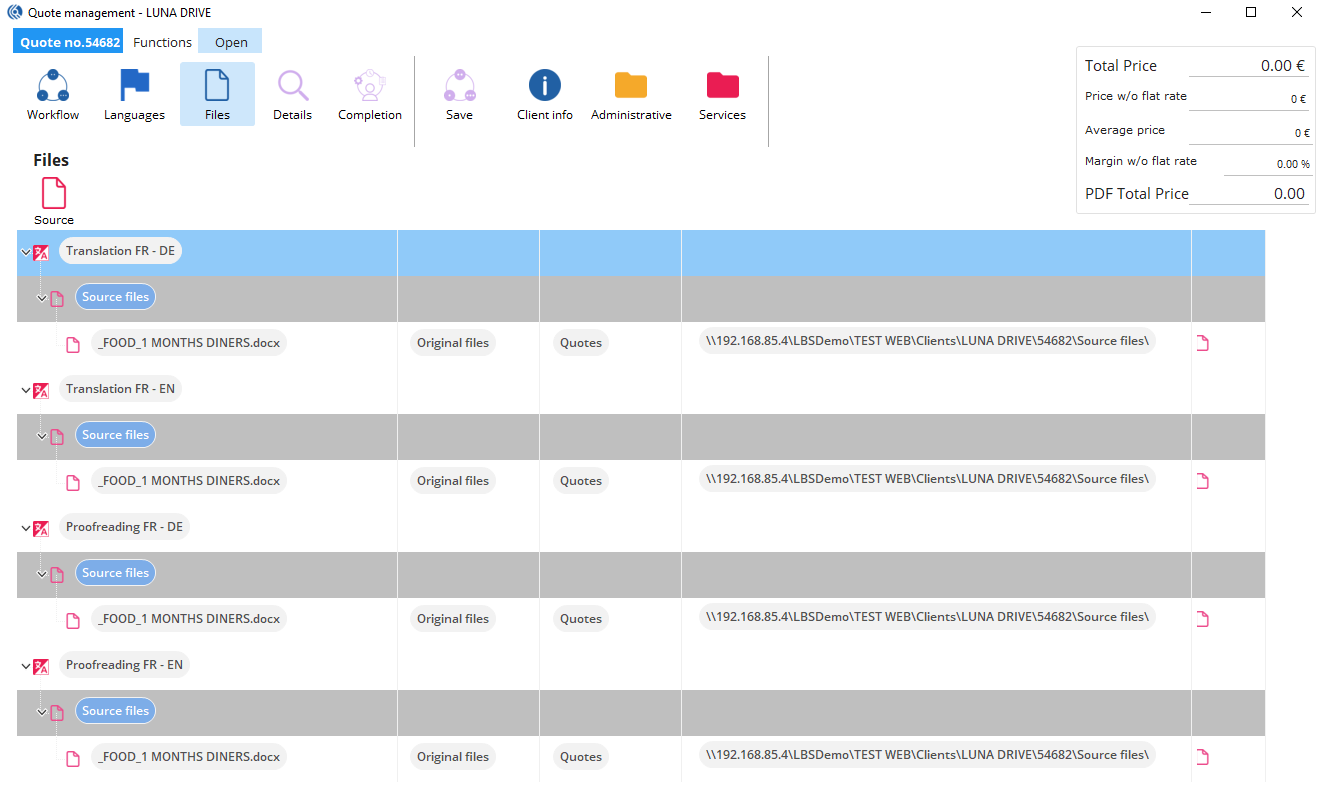
Once this screen is closed, you return to the "Files" menu of your quote management.
You can find a summary of the files related to each service.
Details
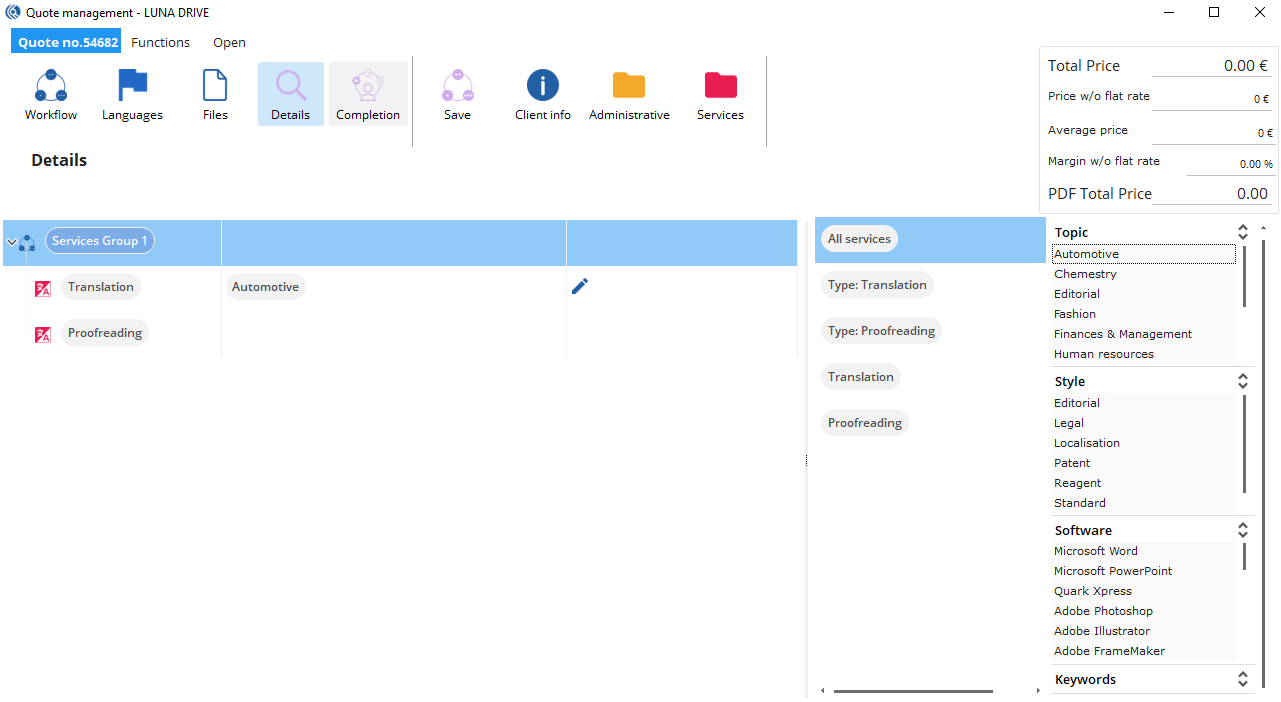
To add a topic, style, software, keywords, etc., drag and drop the detail where needed. You can add the details:
- globally to all services
- to all services of the same type (Translation / Proofreading / Mission / Others)
- to all similar services (only translations, only post-editing services, etc.)
The details then appear on the corresponding line. You can delete details by clicking on the pen.
Completion
In this menu, you will be able to process the services, set the dates, add comments, etc.
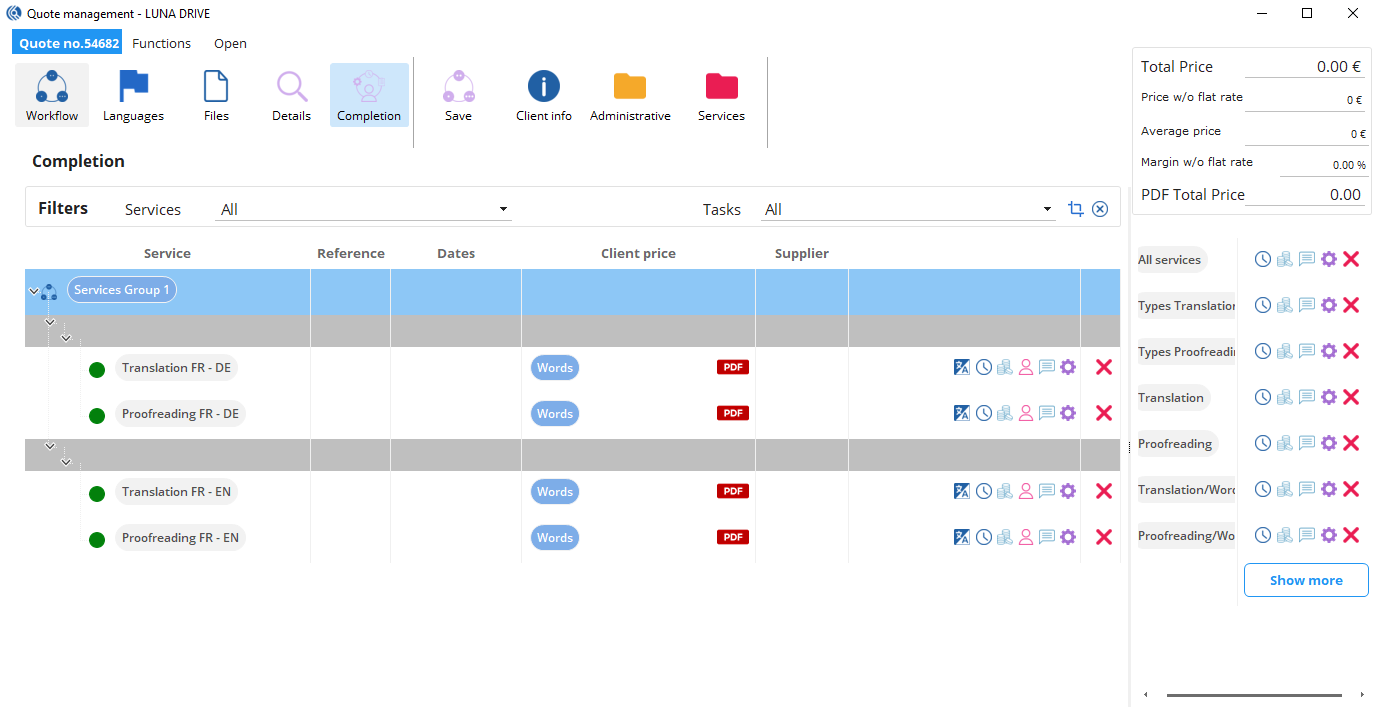
You can process services globally or by Types, services, language combination ("Show more" button to display language combinations). Above the services, you can filter the services and tasks by type/status. It is also possible to make a manual filter, by selecting the services of your choice. By clicking on the blue cross, you reset the filters.
Global processing
 : Entering dates

Here you can enter dates globally for all relevant services. You can put either a delivery term or a delivery date.
 **: Price calculation. **This button allows you to access all the functionalities related to the pricing of the services.
-
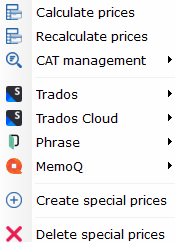
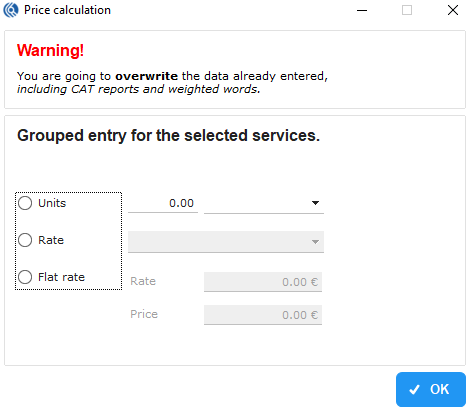 Calculate prices:
Here you can enter the units, rate, or flat rate to apply to the selected services. -
Recalculate prices:
If you have changed some things (number of units, units, CAT analysis), click here to recalculate all prices. -
CAT management:
Gives global access to the functions that are on the CAT grid: import/copy a CAT analysis and calculate the weighted words. You can import analysis from most CAT tools: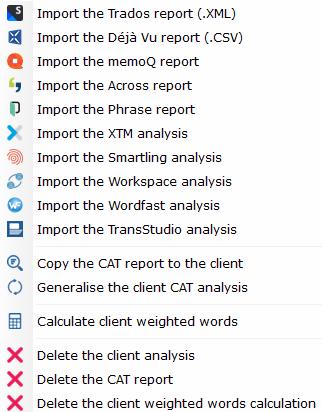
-
SDL/Phrase/MemoQ:
Allows you to create the project in your CAT tool. If you are using MemoQ, you can also add files after the project is created. -
Create special prices:
Possibility to add special prices for the selection. The special prices must exist in the client records. -
Delete special prices that have been applied to services.
 Comment:
You can add a comment to all selected services.
 Functions:
Here you can determine whether the selected services are main or optional services. For example, I can put the proofreading services as optional services. Thus, they appear in italics with a red icon. The main services have a green icon.
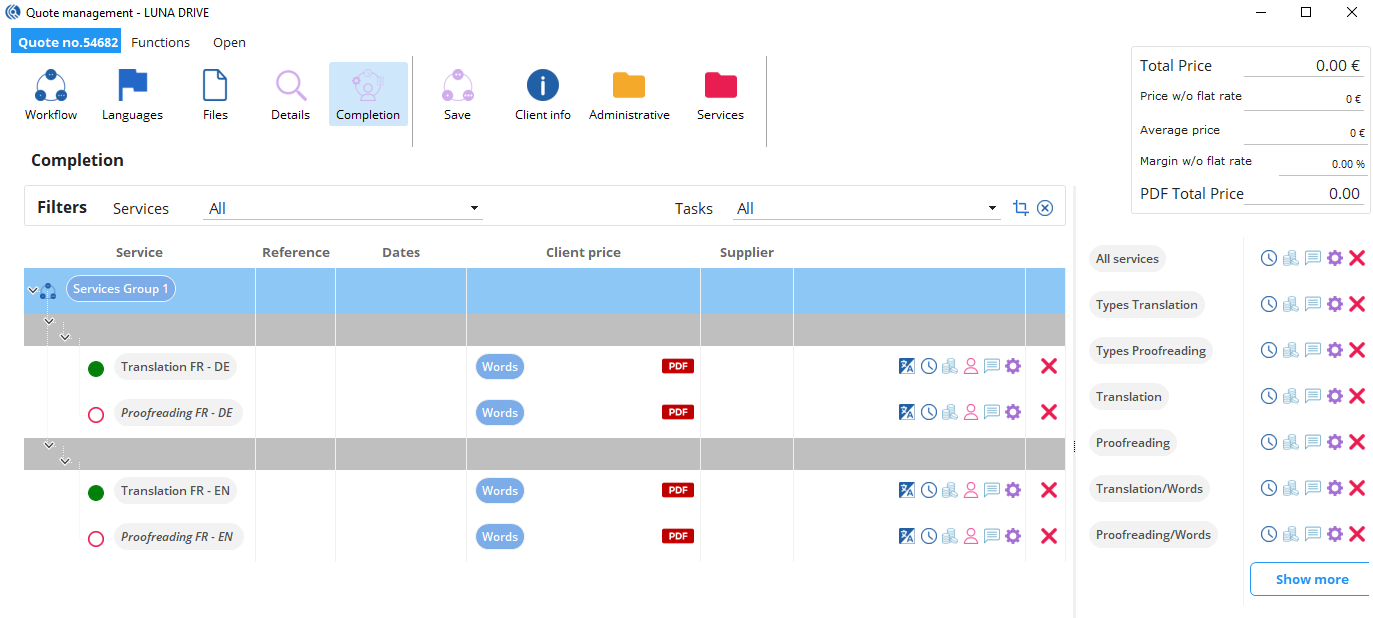
The same way, if you create alternative services, the selected alternative appears in green, the other appears in red. There must always be one selected alternative. This determines the price of the quote.
Processing a single service
 For line-by-line processing of services (in the main part of the screen), the menus are the same but only apply to the service on which you clicked.
The button opens the service entry window.
 The button
  opens the service entry window, tab General, to define the dates.
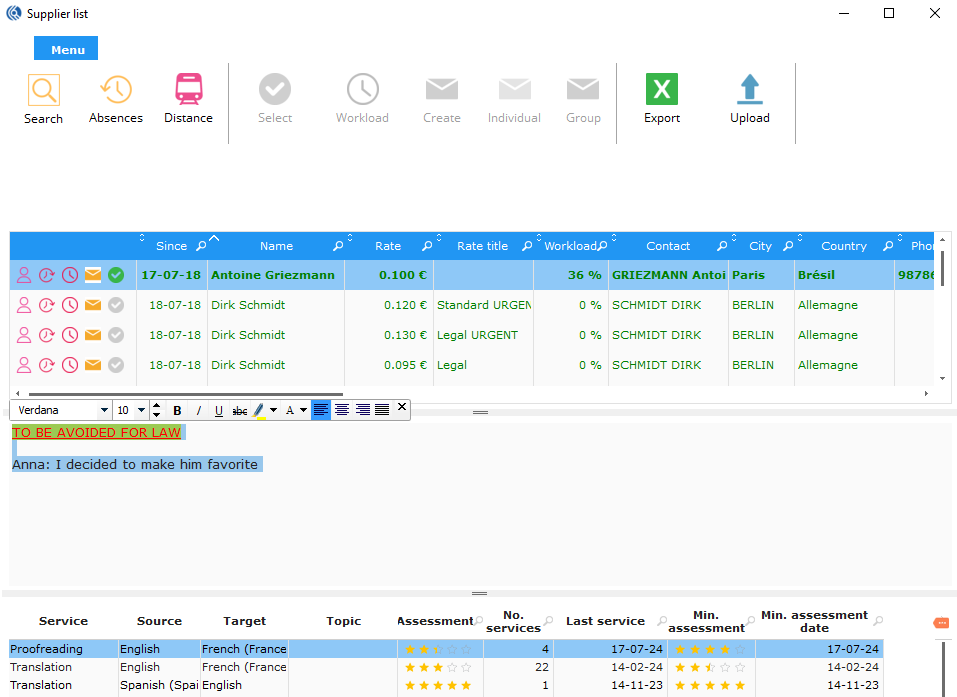
The button  allows you to search for a supplier for the service.
-
With an automatic or manual search, you can:
Open the supplier record Check his schedule Calculate his occupation rate Send an email
The "Select" option only works with the "Project Design" module.
-
The "Book a supplier" option allows you to book an internal supplier even before the client confirms the quote.
Processing a task
The tasks are processed one by one in the main table of the Completion menu.
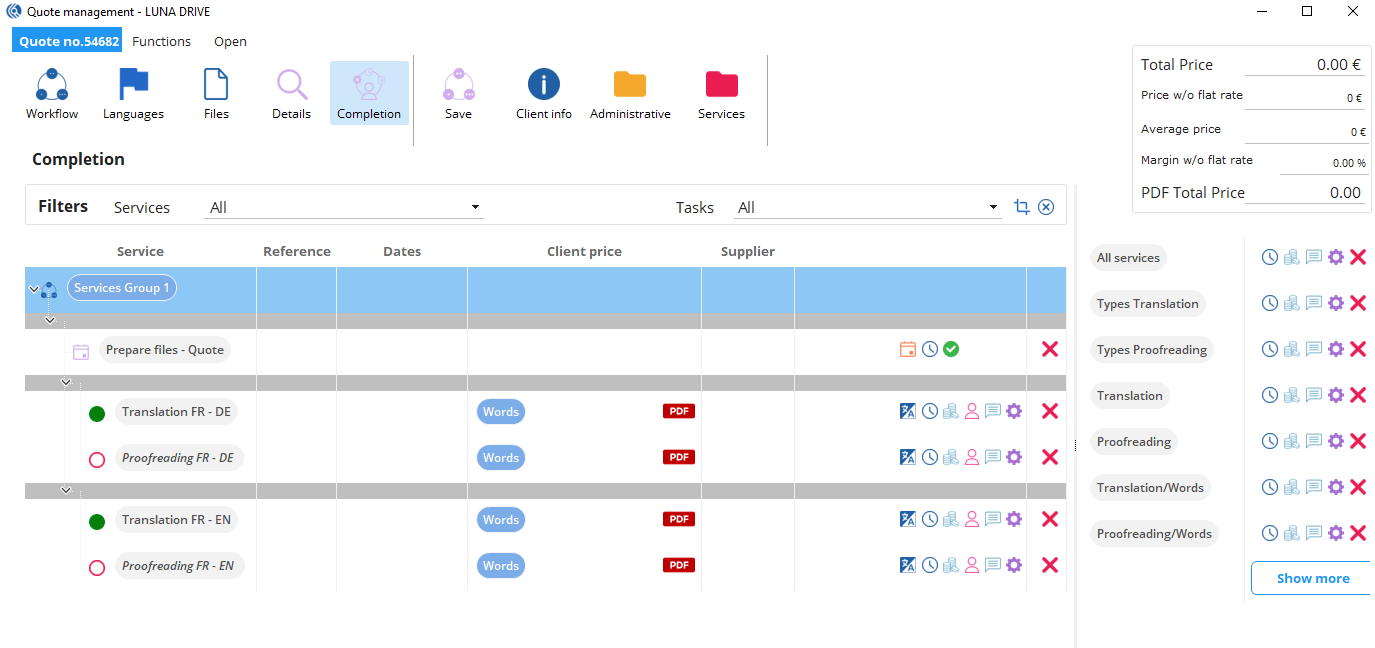
 : Task settings
: Entering time spent
: Close the task
Once the task is closed, the task icon on the left side of the screen turns green. To unlock the task, click on the red lock  .
.
Once you have entered all the information, here is an example of what your screen could look like:
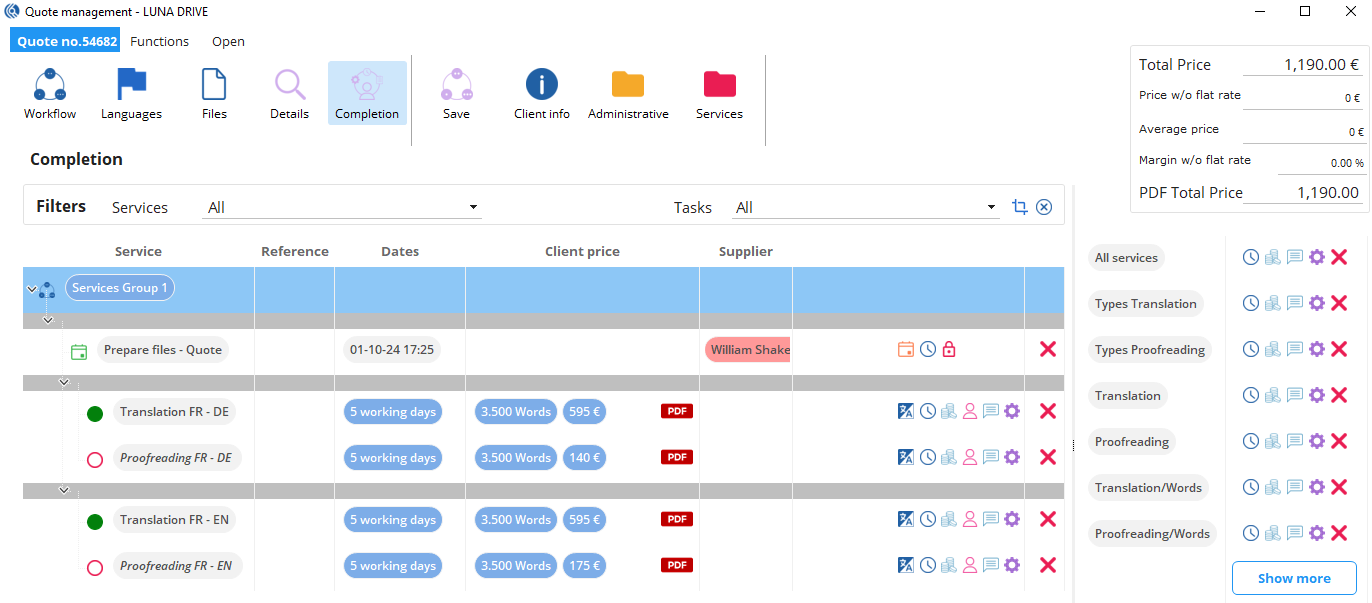
Other functions in the processing of a quote
In the ribbon menu, you can save your workflow to serve as a workflow template (if your client always asks for the same workflow for example).
You can also access the client's information and open the various folders related to quote.

In the tab "Open", you have quick access to the client and contact record of the quote.

Back to the main screen of the quote
Once you have finished processing the services, you can close the window and return to the main screen of the order.
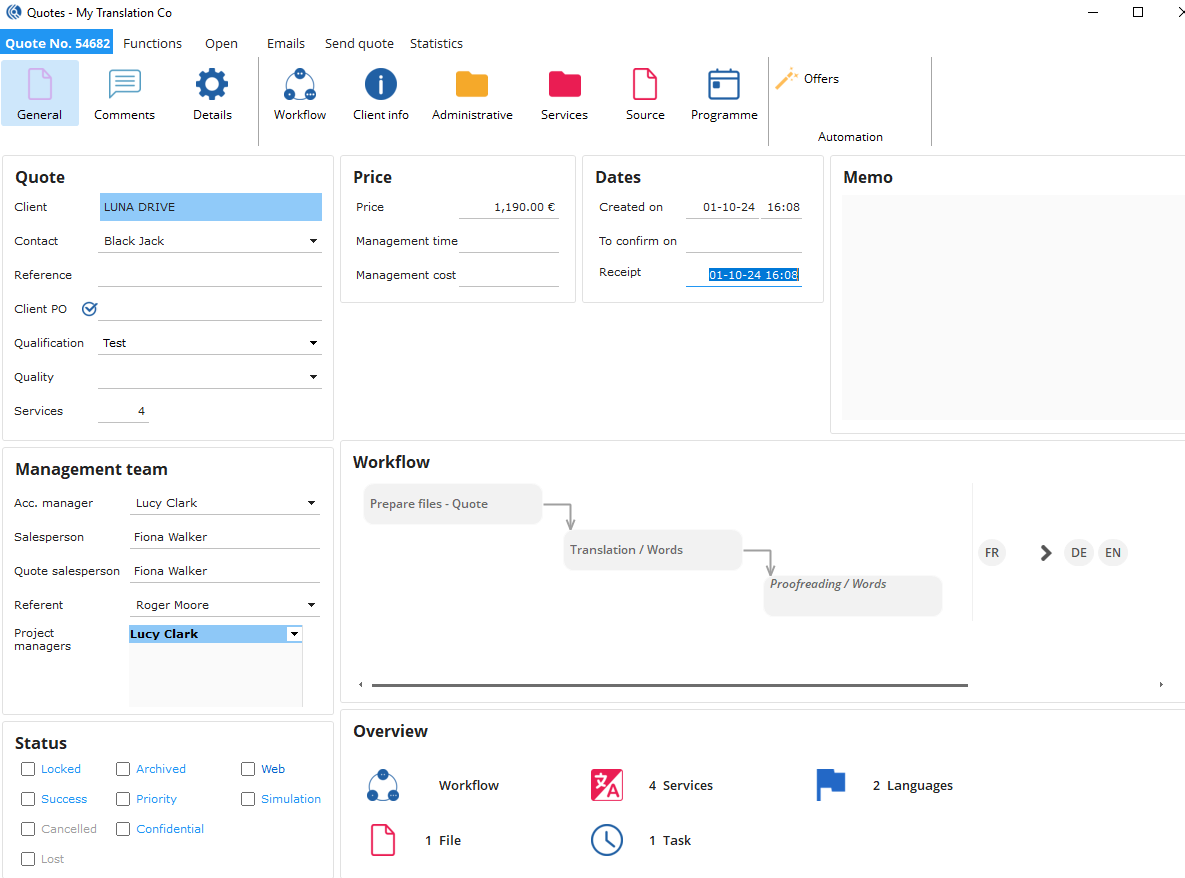 This is made up of several parts:
- Main tab
- Functions
- Open
- Emails
- Send quote
- Statistics
Main tab
 : Displays information on prices, management costs, and dates related to quote. You can also add a (customisable) memo about the quote.
Note: the price of the quote corresponds to the price of the selected services (symbolised by the green icon in the Completion screen). It does not take into account unselected options and alternatives (symbolised by the red icon in the Completion screen).
 : Allows you to see/modify the remark of the quote and to add a memo for the invoice and/or for the automatic follow up of the quote.
 : Displays quote receipt/delivery details, currency and invoicing details. This information is filled in by default according to the client and contact record. They can be modified in this screen.
 : Opens the client information window
 : Opens the administrative folder of the quote
: Opens the services folder
 : Opens the screen with the quote files
 : Opens the mission programme. Useful only in the case of interpretation services.
 : Offers automation. If you click on this button, once the quote is accepted by the client, an offer email will automatically be sent to the favourite and/or regular suppliers, depending on the boxes you check.

Quote: General information about the quote
Management team: Users related to the quote
Status: Status of the quote
Workflow: Summary of the quote workflow (services, linked services, languages, subject, style)
Overview: Displays the number of services, the files, languages and tasks in the quote. Each button is clickable and takes you to the corresponding menu.
Functions tab

This tab regroups the different actions you can do on this quote:
Update the client data
Update the salesperson
Create a follow-up in LBS Suite
Send a follow-up email
Lock/Unlock/Reactivate the quote
Lost/Cancelled/Archive (accessible once the quote is locked)
Create a new design from the quote
Open tab
Allows you to quickly open the client record, the contact record or the list of quotes for this client.

Emails tab
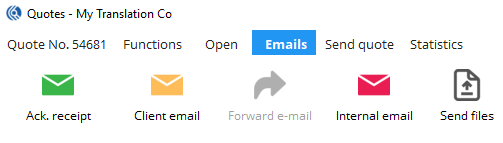
You will find here the different emails that you can generate from the quote:
Acknowledge receipt of the quote request to send to the client
Email sent from the quote to the contact of the quote
If your quote has been created from an email, you can forward the email.
You can also send an email internally from the quote.
If it is a quote from the web, you can send files to the contact via the web.
Send quote tab
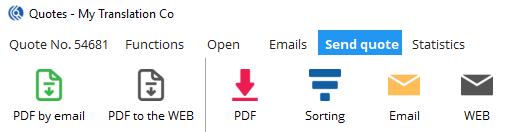
From this tab, you can:
Generate the PDF of the quote and send it directly by email
Generate the PDF of the quote and send it directly by web
Print the quote in PDF format
Sort the services to reorganise their order of appearance in the PDF quote
After printing the PDF, send it by email
After printing the PDF, send it via the web
Statistics tab
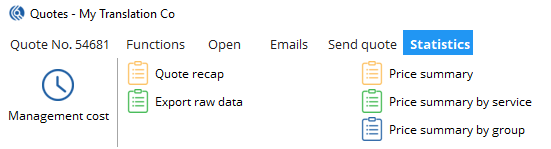
Allows you to access the management cost of the quote. You can also generate a recap of the quote, export raw data in Excel format and display a general price summary, a price summary by service or by group.